Vivo is one of the top-selling smartphones in South East Asia countries. Currently, MWC Shanghai is happening from 26th June until 28th June. Every year, mobile makers from Asia will be showcasing their next generation smartphone and technology during this 3 days event. During the event, Vivo’s announces its first 5G phone called iQOO 5G.
At this moment, Vivo didn’t reveal detailed information on the specifications. However, Vivo did talk about the challenges of a 5G network. Vivo says it will be launching its 5G smartphone in the coming three months. Vivo shares a promo video which shows life with a 5G smartphone.
Regarding the specifications, Vivo iQOO 5G smartphone powered by the Snapdragon 855 chipset which connects to an external X50 modem same as the other 5G smartphones. For the battery capacity wise, Vivo had to increase the battery capacity due to the 5G modem which requires a lot of power.
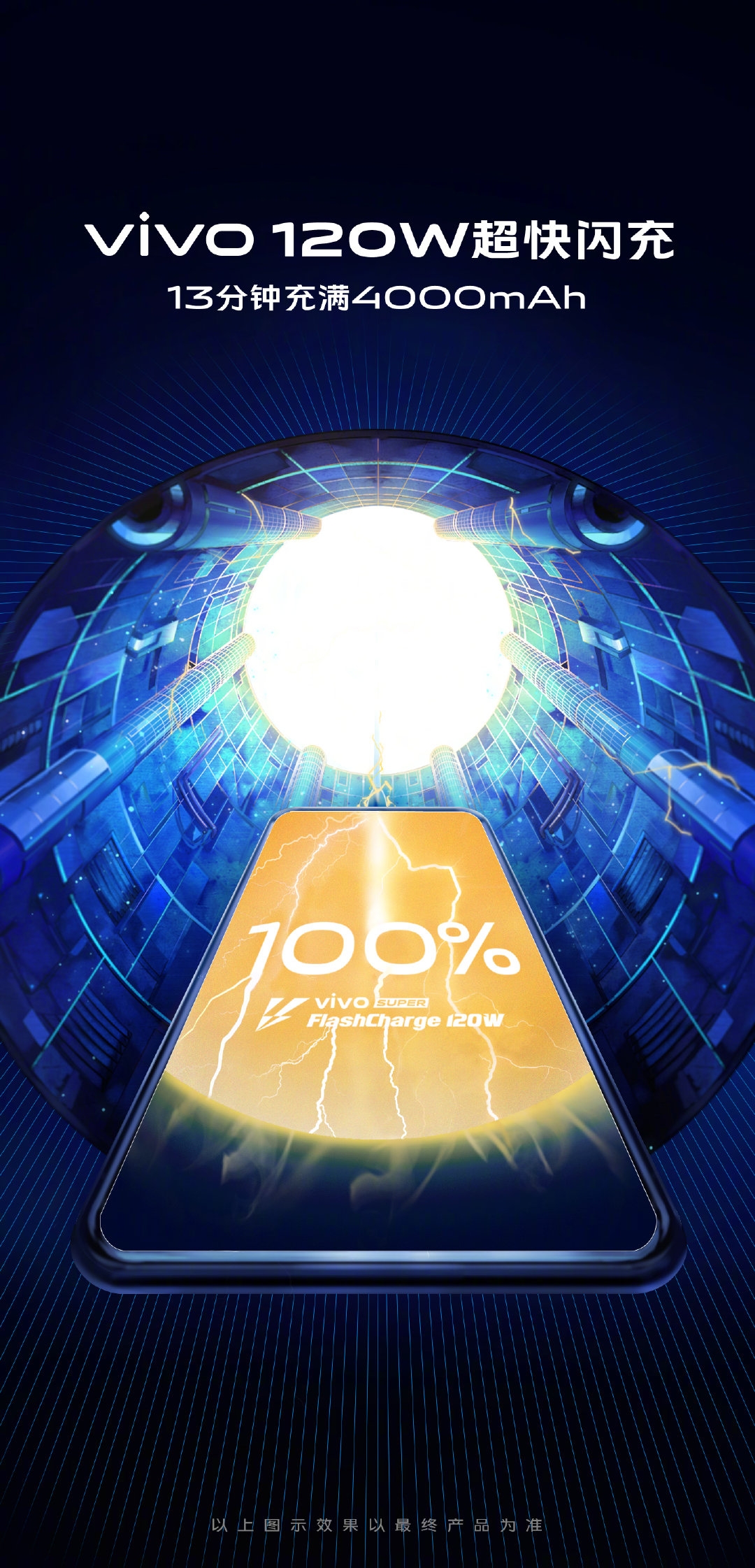
Other than that, Vivo also demos its Super FlashCharge technology to the audience. The Chinese company promises its ultra-fast charging technology is able to charge a 4,000 mAh battery full within 13 minutes only. It takes about 5 minutes to charge at least 50% of the battery capacity. During the announcement, Vivo says the Super FlashCharge technology requires 20V and 6A current.
In conclusion, Vivo didn’t talk much about the technical specification yet. We are still unsure whether the phone will support its new charging technology. Stay tuned for more details will be revealed during the official launch of Vivo iQOO 5G smartphone.
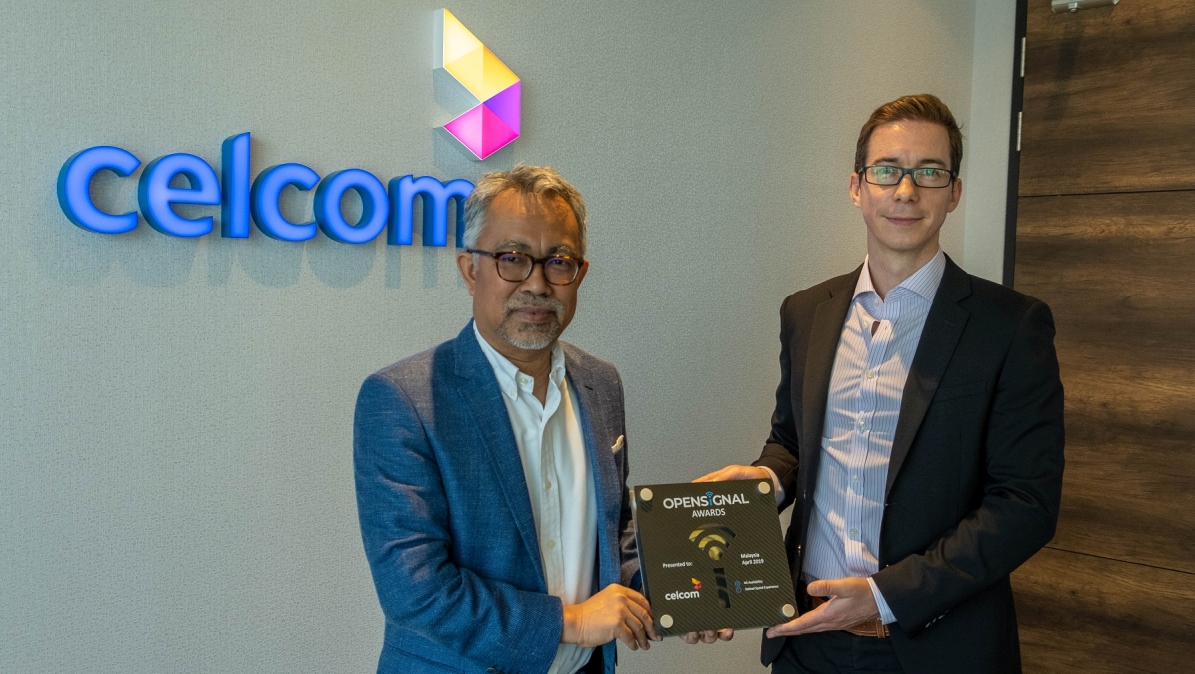
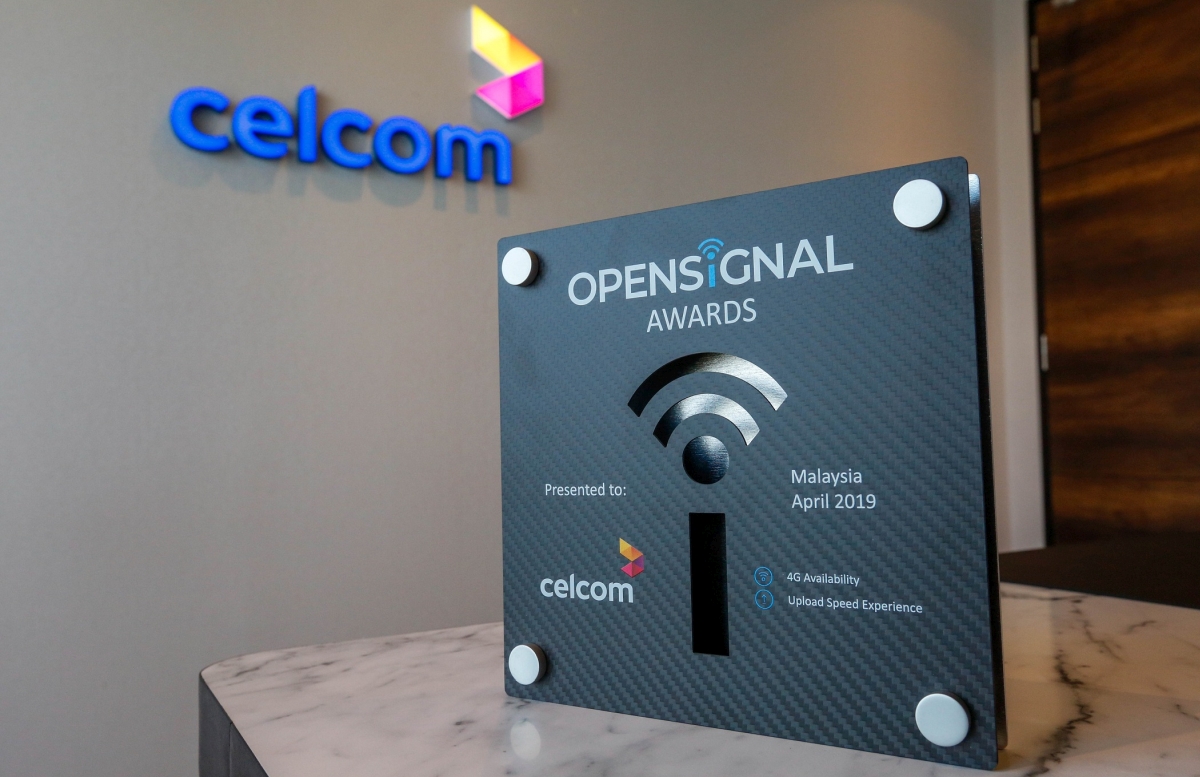
Back in April, OpenSignal releases a report on Malaysia Mobile Network Experience. From the report, OpenSignal concludes that Celcom has the best 4G network available throughout the country.
Based on the 1,912,501,331 measurements taken between December last year and February this year, OpenSignal declares Celcom as the winner in both the 4G availability and upload speeds. Other than that, Celcom draws a tie game with Maxis for video experience.
Apart from that, Celcom recorded 86.8% when it comes to 4G availability nationwide. Maxis is at the second place after Celcom where its 4G availability was recorded around 83.8%.
In conclusion, Celcom has the best 4G network in Malaysia. According to the report, the Celcom 4G availability was recorded at 90% in cities such as Alor Setar, Ipoh, Johor Bahru, Kuala Lumpur, Kuala Terengganu, Melaka, and Seberang Perai.
Last month, Apple announces its next software release iOS 13 at the Word Wide Developer Conference (WWDC). There are a lot of features Apple announces for the iOS 13. Apple says this software release mainly focuses on the performance of the iPhones especially the older ones. At the WWDC Apple releases the iOS 13 on the same day to all the registered Apple paid developers account. Today, Apple rolls out iOS 13 public betas. You can go through this blog to know vital information on this software including how to install iOS 13 public beta.
Before you join the Apple Beta Program, make sure you check the list below whether your iPhone is supported. These are the devices which supports iOS 13.
iPhone XS, XS Max
iPhone X, XR
iPhone 8, 8 Plus
iPhone 7, 7 Plus
iPhone 6S, 6S Plus
iPhone SE
iPod touch (seventh generation only)
Check out our article on the top iOS 13 features where we share the features we personally love about iOS 13. After reading it if you decide to proceed, continue reading this article.
Let’s get it straight to the point. iOS 13 software is still in beta phase where you might encounter many issues while using it. At this moment, TheVerge encounters a few issues such as the battery which drains quickly. Other than that, there is also frequent app crashes which TheVerge encounter while using iOS 13.
How to install iOS 13 Public Beta
You can install iOS 13 by following this simple steps below.
First, go to Apple’s beta software portal page from Safari for iPhone. Make sure you use only Safari. Other browsers don’t support you to enroll your device.
Login into the software portal using your Apple ID.
Then, click on the “Enrol Your Devices” button at the top of the page. Sometimes, you need to scroll horizontally to find the button.
Next click on the “iOS” button and a page will show up where you have to click on the “Download profile” button. (*Note: Make sure you back up your iOS devices before enrolling your device.)
By selecting “Allow” a pop-up window will show a message “You can set the new profile from the Settings app”.
Now, head to the Settings app and tap on the General. Scroll down and tap Profile.
Now you should be able to view the iOS 13 Profile.
Tap on the profile and tap on the “Install” button at the top.
The last step would be heading to the Software Update section on the Settings app and update your iOS devices to iOS 13.
In conclusion, by following this simple steps you can start using iOS 13 within few hours. Comment down below if you face any issues in updating to iOS 13.
A month ago, Microsoft launches the new Terminal app for Windows 10 during the 2019 Build conference. Remember the old command prompt tool were during those young days we used to type in some code and act like we know hacking. Microsoft aims Terminal to be the central location where you can access the old command prompt tool, PowerShell and the new Windows Subsystem for Linux (WSL). Now, Microsoft rolls out the Terminal app as an early preview to the public.
Bear in mind this is early preview release of the Terminal app. Some of the features have not been implemented yet. Features such as the customization are not available as part of the GUI yet. The Terminal app supports multiple tabs which are same as the Terminal application in the Ubuntu.
Image from The Verge
Additionally, Windows Terminal app supports themes where you can change the background image of the Terminal app. In order to do customization for the developers, they have to use the JSON configuration file to edit the Terminal app. Do not worry, as Microsoft provides the instructions on how to use the JSON file to config the settings.
Image from The VergeImage from The Verge
If you notice in the image below, there are some icons for Pass, Partial, and Fail. None of the Terminal app in Ubuntu or Fedora supports this feature. Microsoft’s new Terminal app supports full GPU-based text rendering and emojis too. During the Build conference, Microsoft teases the emoji support through a video. This means the new Terminal app will show characters, glyphs, and symbols too.
Image from The Verge
In conclusion, Windows Terminal Program Manager says, the Terminal 1.0 app will arrive in the Microsoft Store this year December. Apart from that, Microsoft is also working too hard to bring the Linux kernel to Windows 10. Click this link to download the Windows Terminal app from the Windows Store.
Planning to change your next Vivo smartphone? Vivo announces its new ultra-fast charging feature which able to fully charge your Vivo smartphone in just 13 minutes. Isn’t it cool? Vivo is naming it Super FlashCharge 120W technology. Back in March, its competitor Xiaomi announces a 100W fast charging technology which can fully charge within 17 minutes. Now, its Vivo’s turn to show off its fast charging capability.
Vivo’s product manager uploaded a video on Weibo which demonstrates the Super FlashCharge charging technology. From the video if you notice, the technology is able to charge the smartphone from 10 to 14 percent within 16 seconds.
At this moment, the charging technology which Vivo and Xiaomi announces is not shipped on a commercial device yet. However, the fastest-charging smartphone which you can purchase currently is from Oppo. Oppo’s Find X Lamborghini Edition, comes with a Super VOOC charge that can fully charge its smartphone in 35 minutes. If Vivo ships its charging technology into a commercial smartphone we can expect Vivo’s smartphone sales would increase tremendously.
In conclusion, our sources say Vivo most likely to demonstrate the Super FlashCharge 120W technology at next week’s MWC Shanghai. Do you think, you will buy Vivo’s next edition smartphone if Vivo ships the Super FlashCharge into it? Comment us your opinion below.
Next week is the right time for you to get yourself your favorite Apple devices from Apple’s resellers’ Machines. Machines is having its warehouse sale next week where you can purchase both Apple products and accessories.
According to the Facebook post of Machines, the clearance sales start from 27 June until 29 June 2019. The venue is at Jaya One, Level P2. On the first day, there will be a preview session for the Machines+ members. During the next day, the warehouse clearance sale will be open to the public until 29 June. Each day the clearance sale starts at 10 am in the morning until 6 pm evening.
Part of the warehouse sale, Machines will be selling Ex-Demo items such as iPhones, iPads, MacBooks, and iMacs. Other than that, you can also purchase Apple’s accessories such as the Beats earphone. All the items which will be selling during the warehouse sale will be only available until stocks last. You can view the list of devices from the list provided.
In conclusion, if you do not own the Machines+ member card, you can sign up at your nearest Machines store. Click here to find out more on how to register for a new member. Don’t miss the chance to get a new Apple device all for a reasonable price.
Did you experience your MacBook battery gets overheated recently? If yes, better walk-in to the nearest Apple Store to get it to fix. Apple just releases a statement which says it is issuing a recall for older generation 15-inch MacBook. According to Apple, the battery is prone to overheat which poses a safety risk.
For now, Apple says those units were sold between September 2015 and February 2017 could be affected and need to be replaced. You can identify your manufacture date from the serial number. Apple says if you purchase the 15-inch MacBook between those years, you should stop using your MacBook and bring to your nearest Apple Store. You can visit this page to get your MacBook checked by entering your serial number.
How to check your MacBook is infected?
First of all, to check your MacBook serial number, click on the About This Mac from the Apple menu () in the top left corner. Then a small window will show where you can see the year as follow “MacBook Pro (Retina, 15-inch, Mid 2015)”.
In conclusion, if your MacBook is infected, bring it now. Other than that, Apple also gives assurance that another generation of MacBook is not affected.
As China is increasing its tariff rate in its country, brands such as Apple are starting to move out its assembly plant outside of China. Apple’s primary target would be the South East Asia countries. Surprisingly, Malaysia has been named its potential location for its new factory.
According to Nikkei Asia Review, Apple wants to reduce its production capacity in China between 15 and 30% to avoid being the victim of the trade war between China and the US. Other than Malaysia, Apple also has the plan to locate its assembly plants to Indonesia and Vietnam. Apple has already started to assemble the iPhone XR in India. Last month May, detikINET says Apple could possibly manufacture MacBook and iPad in Indonesia.
Statement from Nikkei Asia:
At the end of last year, the company began to expand its so-called capital expense studies team, according to sources familiar with the matter. The team of more than 30 people is discussing production plans with suppliers and governments over financial incentives they might be willing to offer to attract Apple manufacturing, as well as regulations and the local business environments,
How Apple assembly partners will react to this?
Other than that, from Nikkei’s report, Apple has asked its assembling partners to consider its assembly plants outside of China. For now, there are many assemblers such as Foxconn, Pegatron, including other major MacBook makers such as Quanta Computer. As for now, it could take up to 18 months for the whole productions to resume after relocating outside of China. The reason behind this delay will be due to the logistics issues.
From this trade war, one of the country who benefits is Malaysia. According to Malaysia’s Finance Minister Lim Guan Eng, during the trade war between the US and China, Malaysia’s investment increases to 73.4%. The Minister also says most of the investment comes from the United States where RM11.5 billion and RM4.4 billion comes from China.
In conclusion, can we expect the iPhone price to drop in Malaysia if Apple locates its assembly factory to Malaysia? We have to wait until we receive final confirmation from Apple.
In Malaysia, they are different types of people who are with disabilities. Some of the people are not even treating them as human. For us, all of those people should be given extra care and privilege. Digi is offering RM10 discount for a lifetime to their customers who have a valid OKU card.
Digi’s new plan starts from RM28 per month which comes with 6GB of data. This is part of its commitment to the United Nations Sustainable Development Goal #10. According to goal #10, they have to reduce the inequalities by providing affordable plans for all its customers in Malaysia.
Interestingly, if a person with a disability has a valid OKU card, he/she can enjoy unlimited voice call to all networks. If the person is not able to walk-in into the nearest Digi Store, their family members can walk-in by bringing along their original identification card and their valid OKU card.
In conclusion, Digi promises to bring personalized offers to people with disabilities. Other than that, if you notice in the Digi Stores, there are priority lanes for these people and also senior citizens and woman who are pregnant.
Remote controllers are among the finest reason about why the modern gaming is the best thing these days. However, these controllers can be frustrating sometimes, especially when they quit working for no perceivable reason. With the PlayStation 4’s DualShock 4 controllers, the Bluetooth connection between the support and the controller can once in a while gets hindered and make a few issues. You need to know about several aspects including compatibility of ps4 controller on iOS 13 to make your gaming experience enjoyable.
Image from GamesRadar
To have a ton of fun while playing, you truly need to connect a PS4 controller to iPhone, iPad or Mac. As a matter of fact, utilizing the PS4 controller on the iPhone is simple and straightforward, yet how to connect a PS4 controller to iPhone, iPad, and mac is what very few individuals know. Here we will uncover the mystery. Read this article till the end to connect a PS4 controller to iPhone, iPad or Mac. This technique will work both on iOS 10 and iOS 11. Read on and learn o how to connect ps4 controller to iOS 11.
The procedure for connecting any controller with your gaming console is simple, and we can tell you the best way on how to connect PS4 controller, so you’re prepared to play once more.
How to Connect Xbox One S Controller To iPhone or iPad
There’s no requirement for any sort of jail breaks any longer. You don’t even have to download any other application. Follow the steps below:
In the first step, you have to open the settings of your iPad or iPhone, whatever device you want to connect with your Xbox One S controller.
Secondly, you must turn on your Bluetooth by tapping on it.
Now you have to turn on your Xbox One S controller, in order to do that press the Xbox button on your console.
After that you should turn your Xbox One S controller into pairing mode, this would be done by pressing and holding the connect button.
When you are done with that you would be able to see the Xbox One S controller in the section of other devices, which would be named as Xbox wireless controller.
In the last step, you should tap on (Xbox wireless controller) to connect Xbox One S controller to your iPhone or iPad
Note that when your Xbox One S controller is connected to your iOS 13 gadget, you’ll have the option to use it for gaming purposes with it as long as the game has controller support for it. You can likewise check the battery level for your controller in the Battery section to make sure that your gaming experience isn’t interrupted.
How to Connect PS4 Controller To iPhone Or iPad
Follow the steps mentioned below and know how to connect ps4 controller to iPhone or iPad:
In the first step, proceed by pressing and holding the PlayStation button along with the share button.
If the first step would be completed successfully you would be able to a light flashing on the PS4 controller.
Now open the Bluetooth setting of your iPhone, iPad or whatever device you want to connect to the PS4 controller.
Find the ps4 controller, it would be shown as DualShock 4.
Finally, tap on it to pair your device.
How to Connect PS4 Controller to Mac
However, there is a lot of buzz on the internet about how to connect my PS4 controller to Mac to play macOS games? Well, there is no such Plug n Play support for Sony’s DualShock 4 controller on mac, there are as yet a couple of ways that you can use to pair your PS4 controller to Mac and play your most loved macOS games and have amazing gaming experience.
Connect PS4 Controller to Mac Using Micro-USB Cable
The most effortless approach to connect PS4 controller to Mac is to utilize a Micro USB cable for connection. In order to accomplish that, follow the steps below:
Firstly, connect your PS4 controller to Mac using the Micro USB cable.
Now turn on the PlayStation by pressing the PS button present in the center of your console gamepad.
After that, you have to choose Apple and go to About this Mac section.
When you are done with that click on System Report to connect the PS4 controller to Mac
In the next step, select USB and search for the wireless controller under the USB section.
After following the steps, you can see Wireless Controller (it’s classified as wireless despite the fact that it’s connected through a Micro-USB Cable), at that point your PS4 controller is successfully connected with the Mac. Now you are free to play all the compatible games. It’s significant that Steam offers full DualShock 4 controller help crosswise over Mac and PC, which means you won’t have to change any extra controller settings when playing a controller-upheld Streaming game using a Mac.
Hooking up your PS4 to a Mac using Bluetooth is great because it enables you to the game without the wire (and without buying the official adapter), allowing you to sit back and use the Mac just like you’d use a console.
Connect PS4 Controller to Mac Using Bluetooth
Connecting your PS4 to a Mac utilizing Bluetooth is incredible in light of the fact that it empowers you to game without the wire and without purchasing the official connector, enabling you to kick back and utilize the Mac simply like you’d utilize a gaming console.
Go to the system preferences of your mac, first select Apple menu and then system preferences.
Then turn on Bluetooth by tapping on Bluetooth option.
In the next step turn your ps4 controller into the discovery mode, this could be done by pressing and holding the PS button along with the share button simultaneously.
After doing so, you can see the light flashing on your ps4 controller.
Now click on pair device with a wireless controller in the Bluetooth options.
Finally, you have successfully connected your mac with a PS4 controller using Bluetooth. Now you can experience unlimited gaming experience by connecting PS4 controllers using a mac.




:no_upscale()/cdn.vox-cdn.com/uploads/chorus_asset/file/16497223/terminal4.jpg)
:no_upscale()/cdn.vox-cdn.com/uploads/chorus_asset/file/16497222/terminal3.jpg)
:no_upscale()/cdn.vox-cdn.com/uploads/chorus_asset/file/16497221/terminal2.jpg)
:no_upscale()/cdn.vox-cdn.com/uploads/chorus_asset/file/16497220/terminal1.jpg)